1. The Universal "Photo Sharing Anxiety"
Modern smartphones hold the most intimate records of our lives: medical lab results, banking statements, personal conversations, relationship moments, and candid screenshots.
Yet every week, we find ourselves handing our unlocked devices to other people:
- Showing a vacation picture to a colleague at work.
- Showing a funny meme or dog video to your parents.
- Passing your phone to a barista or ticket collector to scan a QR code or barcode.
- Handing your phone to a child in the car to watch a cartoon.
Almost universally, human curiosity (or sheer accidental muscle memory) causes people to swipe left or right. Suddenly, someone you barely know is looking at private photos you never intended to share.
Up until now, the only defense has been "the awkward hover"—holding your phone with a death-grip while tilting it toward your friend's face so their fingers cannot touch the glass. It feels antisocial, awkward, and uncomfortable.
2. Why Android's Built-in "App Pinning" Falls Short
Android has a built-in feature in Settings > Security called App Pinning (Screen Pinning). While useful for preventing someone from leaving an app, it does not solve the photo privacy problem:
- App Pinning prevents the user from going back to the home screen, but all touch gestures inside the app remain completely active!
- A pinned Google Photos or Samsung Gallery app still allows the viewer to swipe through every single photo, delete albums, or open shared memories.
- Setting up App Pinning is clumsy, requiring navigating into the Recent Apps overview and tapping small submenu icons.
3. The Solution: How Swipe Stop Freezes Your Screen
The real solution is straightforward: you want the picture or video to remain brightly illuminated on screen, but completely disable touch input until you take the phone back.
That is the exact superpower provided by Swipe Stop by GiantTurtle Studio.
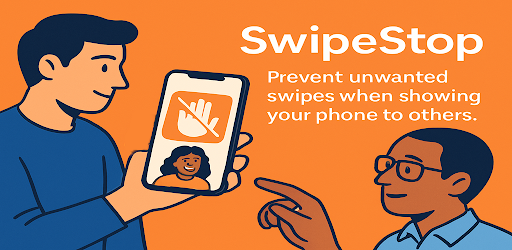
Swipe Stop: Screen Freeze for Android
Freeze touch input with 1 tap. Prevent accidental or snooping swipes. Unlock securely with your fingerprint or face scan. 100% ad-free.
Swipe Stop delivers complete peace of mind with three core features:
- Instant Touch Freeze: Locks touch input and gesture navigation with a single tap, keeping the active image or video visible.
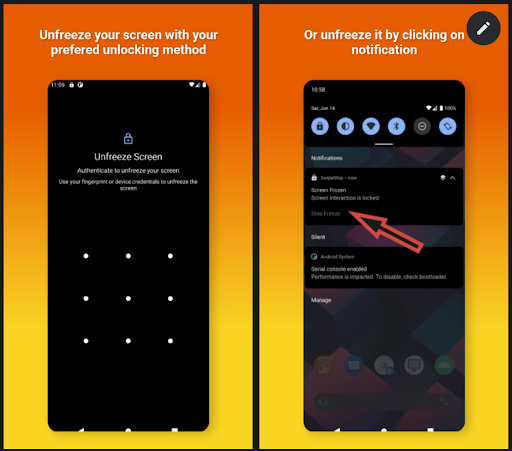
- Biometric Unlock: When you get your phone back, unlock the screen instantly using your standard device fingerprint or face scan—just like unlocking your phone!
- Keeps Screen Awake: Prevents the display from timing out or dimming while friends inspect the picture.
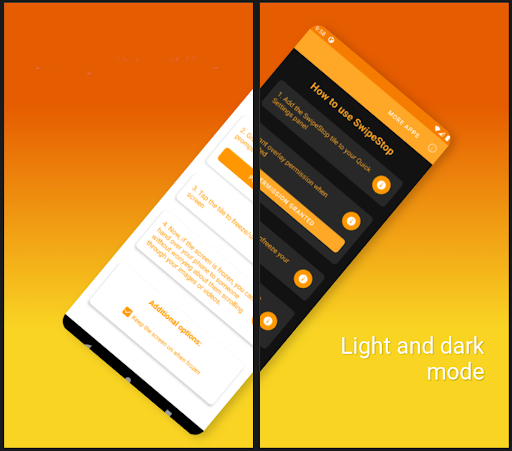
4. 3 Everyday Scenarios Where Screen Freeze is Essential
1. Showing Photos & Memes to Friends
Open your favorite photo, engage Swipe Stop, and hand the phone over with zero hesitation. They can hold the device comfortably, admire the image, and even touch the glass—the photo stays locked in place.
2. Toddler & Kid Video Lock
Toddlers love clutching the phone by the screen while watching cartoons. On standard Android, a single stray thumb touch pauses the video, opens Chrome, or triggers emergency dialers. With Swipe Stop, touch input is completely inactive, letting kids enjoy their video without interruption.
3. Watching Movies in Bed or Gym Workouts
Ever watched Netflix or YouTube in bed or on a treadmill, only for a loose blanket, hand repositioning, or sweat droplet to accidentally fast-forward the video? Engaging Swipe Stop prevents ghost touches and accidental playback pauses.
5. Step-by-Step: How to Use Swipe Stop
Download Swipe Stop from Google Play
Install Swipe Stop from the Google Play Store. It is lightweight, contains zero ads, and respects your privacy.
Open Any Photo, Video, or Document
Navigate to the photo, boarding pass, concert ticket, or video you wish to share.
Trigger Screen Freeze
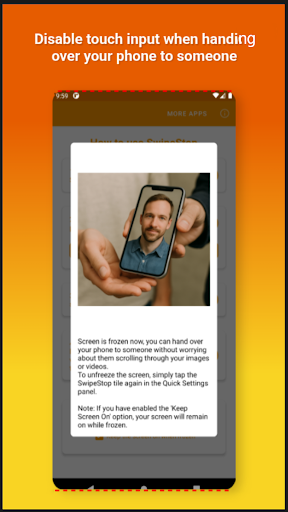
Tap the floating freeze trigger or Quick Settings tile. The touch layer is immediately frozen while the display remains illuminated. Hand your phone over with complete confidence!
Unfreeze with Your Fingerprint
When you get your phone back, touch the fingerprint sensor or enter your device PIN to restore normal touch interactions instantly.
6. Feature Comparison: App Pinning vs. Swipe Stop
| Security Feature | Stock Android App Pinning | Swipe Stop |
|---|---|---|
| Touch Gestures Disabled | No (Free to swipe photos) | 100% Touch Frozen |
| Gallery Snooping Prevention | Fails completely | Total Protection |
| Biometric Unfreeze | PIN or pattern only | Fingerprint / Face / PIN |
| Display Kept Awake | Follows system timeout (15-30s) | Screen stays on while locked |
| Ad-Free & Lightweight | System default | Zero Ads • Battery friendly |
7. Frequently Asked Questions
With Swipe Stop, you can freeze touch input with a single tap before handing your phone over. All touch interactions (swiping, tapping, back gestures) are disabled while the photo remains visible on screen. Unlock it with your fingerprint when you take it back.
Pressing the power button simply turns the screen off into standard Android lock mode. To access the phone again, your standard lock screen security (PIN, fingerprint, or password) is enforced.
No. Swipe Stop is completely free of banner ads, popups, and intrusive interruptions, ensuring an uninterrupted and professional user experience.
Yes. Swipe Stop is compatible with all modern Android smartphones and tablets running Android 9 through Android 15+.
Your Screen. Your Rules.
Never suffer from photo-sharing anxiety again. Protect your personal moments and share with complete peace of mind with Swipe Stop.
Get Swipe Stop on Google Play
Free, ad-free, and lightweight touch lock utility for all Android devices.