1. Why Tactile Hardware Controls Still Beat Touchscreens
As mobile phone manufacturers continually strip away physical hardware—headphone jacks, notification LEDs, home buttons, and dedicated camera shutters—we have been forced to rely almost entirely on glass touch displays.
While flexible, touchscreens have fundamental ergonomic limitations:
- No Tactile Feedback: You cannot feel where a software button is without looking directly at the screen. You cannot skip a song or check a notification while keeping your eyes on the road, trail, or gym weights.
- One-Handed Ergonomics: As screens have ballooned to 6.7 inches and larger, reaching the top of the display to pull down notifications or reaching the bottom navigation bar causes thumb strain. Physical volume buttons sit naturally right where your index finger or thumb rests.
- Glove & Wet Weather Usability: Capacitive touchscreens glitch in rainy conditions or when wearing winter or motorcycle gloves. Physical hardware keys register every single click flawlessly.
2. The 4 Most Useful Hardware Shortcuts You Can Create
By distinguishing between single clicks, double clicks, and long presses on the Volume Up and Down rockers, you can configure actions that feel like built-in flagship features:
Pocket Music Control (Screen-Off Skipping)
When listening to Spotify, YouTube Music, Apple Music, or audiobooks while walking, commuting, or running, pulling out your phone to unlock it and skip a track is a hassle.
Configure a Long Press on Volume Up to skip to the next track, and a Long Press on Volume Down to restart or play the previous track. Your phone stays tucked safely in your pocket or running belt.
Instant Tactical Flashlight
Navigating a dark hallway or searching for dropped keys shouldn't require turning on your screen, blinding your adjusted night vision, and swiping open the Quick Settings tile.
Assign a Double Click on Volume Up to toggle the camera LED flashlight on and off instantly—even when the device is locked.
Physical "Back" and "Home" Navigation
If you struggle with edge-swipe back gestures or your bottom touch digitizer is unresponsive, mapping a Double Click on Volume Down to trigger the system Back action creates an effortless physical navigation button.
One-Handed Notification Shade Drop
Map a rapid double-tap or simultaneous button press to expand your Android notification shade and Quick Settings without reaching your thumb to the very top bezel.
3. How It Works: Accessibility Services vs. Risky Root & ADB
Historically, intercepting hardware button events on Android required rooting your device or running complex ADB commands from a desktop computer via USB cable. Rooting introduces significant vulnerabilities: it trips SafetyNet/Play Integrity, breaks banking apps, blocks Netflix HD streaming, and risks bricking your phone during system updates.
Modern Android handles this cleanly through the Android Accessibility API:
- When granted permission, the app registers a low-level listener for
KeyEvent.KEYCODE_VOLUME_UPandKeyEvent.KEYCODE_VOLUME_DOWN. - When you press a volume key, the app checks if you performed a single tap, double tap, or long press.
- If a custom trigger is detected, the custom action is executed immediately; if it's a regular single press, the key event is passed through to the system audio engine so your volume adjusts normally.
- No System Partitions are Modified: Your device remains 100% stock, fully secure, and compatible with banking applications.
4. Step-by-Step Setup Guide with Volume Buttons Extended
The cleanest, most responsive utility for hardware key mapping is Volume Buttons Extended by GiantTurtle Studio.
Enable Accessibility Service
Tap Enable Accessibility Service on the welcome screen. In your Android Settings, locate Volume Buttons Extended under Downloaded Apps, and toggle the switch to On. Confirm the system security prompt.
Map Your Buttons
Tap on Volume Up or Volume Down, select your trigger (Single Click, Double Click, or Long Press), and assign your desired action:
- Media controls (Next Track, Previous Track, Play/Pause)
- Flashlight Toggle
- Navigation (Back, Home, Recent Apps)
- Direct App Launch (Launch Camera, Voice Recorder, or Calculator)
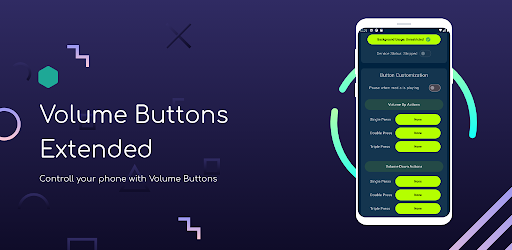
Get Volume Buttons Extended for Android
Hardware buttons, infinite possibilities. Remap your volume rocker to skip songs with screen off, toggle flashlight, drop notifications, and navigate back—no root or ADB required.
5. Preventing Battery Drain & Fixing Aggressive OEM Battery Killers
Android manufacturers like Samsung (One UI), Xiaomi (HyperOS / MIUI), and OnePlus (OxygenOS) include aggressive background app killers designed to prolong battery life. Occasionally, these processes may mistakenly sleep your accessibility service after several hours of inactivity.
To guarantee instant button response 24/7 without delays:
- Go to Settings > Apps > Volume Buttons Extended > Battery and set it to "Unrestricted".
- On Xiaomi / HyperOS devices: Enable Autostart in app info and lock the app in the recent apps view.
- On Samsung devices: Add Volume Buttons Extended to "Never sleeping apps" under Device Care.
Because Volume Buttons Extended is built on an event-driven loop rather than polling sensors, keeping it running draws virtually 0% battery while in standby.
6. Security & Permissions Transparency
When enabling an accessibility service, Android displays a standard warning stating that the service can view screen interactions. GiantTurtle Studio designs all applications under strict zero-compromise privacy guidelines:
- No Cloud Connections: The application does not collect, log, or transmit your device usage to any analytics server.
- Restricted Scope: Only physical key presses are processed to execute your configured shortcuts. Your on-screen keystrokes, personal chats, and passwords remain entirely untouched.
7. Frequently Asked Questions
Yes. By default, single presses pass straight through to the Android sound manager so your volume adjusts as normal. Custom actions are typically bound to double-tap or long-press gestures, giving you shortcuts without compromising standard volume controls.
Yes. Volume Buttons Extended dispatches standard Android media intent events (KEYCODE_MEDIA_NEXT and KEYCODE_MEDIA_PREVIOUS), making it compatible with any audio player supporting standard Android media session controls.
Volume Buttons Extended is a popular lifesaver for devices with broken physical buttons. You can map double-clicking a volume key to lock the screen, launch apps, or access system power menus, extending the life of your hardware.