1. The Frustration with Default macOS Hot Corners
Apple introduced Hot Corners in macOS decades ago as an effortless way to access system views by flicking your mouse into the corners of your display. On paper, it is brilliant: screen corners are infinite targets under Fitts's Law because your cursor cannot overshoot the edge of the physical display.
In practice, however, default macOS Hot Corners have remained virtually unchanged and suffer from three critical flaws:
- Only 4 Fixed Corners: Modern displays—from 14-inch Liquid Retina MacBook screens to large external monitors—offer immense perimeter space, yet Apple restricts you to only four corner triggers.
- Severely Limited Action Catalog: Apple only allows a handful of preset actions (Mission Control, Show Desktop, Notification Center, Launchpad, Quick Note, Lock Screen, Display Sleep). You cannot launch an app, trigger a custom keyboard shortcut, run an Apple Shortcut, extract on-screen text, or execute a script.
- No Delay Timer or App Exclusions: Moving your cursor toward the Apple logo, menu bar, or browser close button triggers corners immediately on hover unless you hold a modifier key every single time—and Apple offers no way to automatically pause triggers while games or specific apps are active.
Because standard macOS hot corners fire immediately with zero hover delay and no app exclusion list, users often abandon the feature altogether after accidentally locking their screen or triggering Mission Control while reaching for a browser tab.
2. The Solution: Zones&Corners for macOS
To solve these limitations, Zones&Corners expands macOS corner interaction into a complete screen-perimeter utility. Built natively in Swift and SwiftUI for macOS 13.0 (Ventura) or later, Zones&Corners runs quietly from your menu bar with zero Dock clutter.
Instead of stopping at four static defaults, Zones&Corners combines 8 trigger slots with 76 built-in actions across 7 categories, custom automation templates, built-in power utilities, trigger delay safeguards, and visual/audio feedback.
3. Screen Edge Zones: Beyond Just the 4 Corners
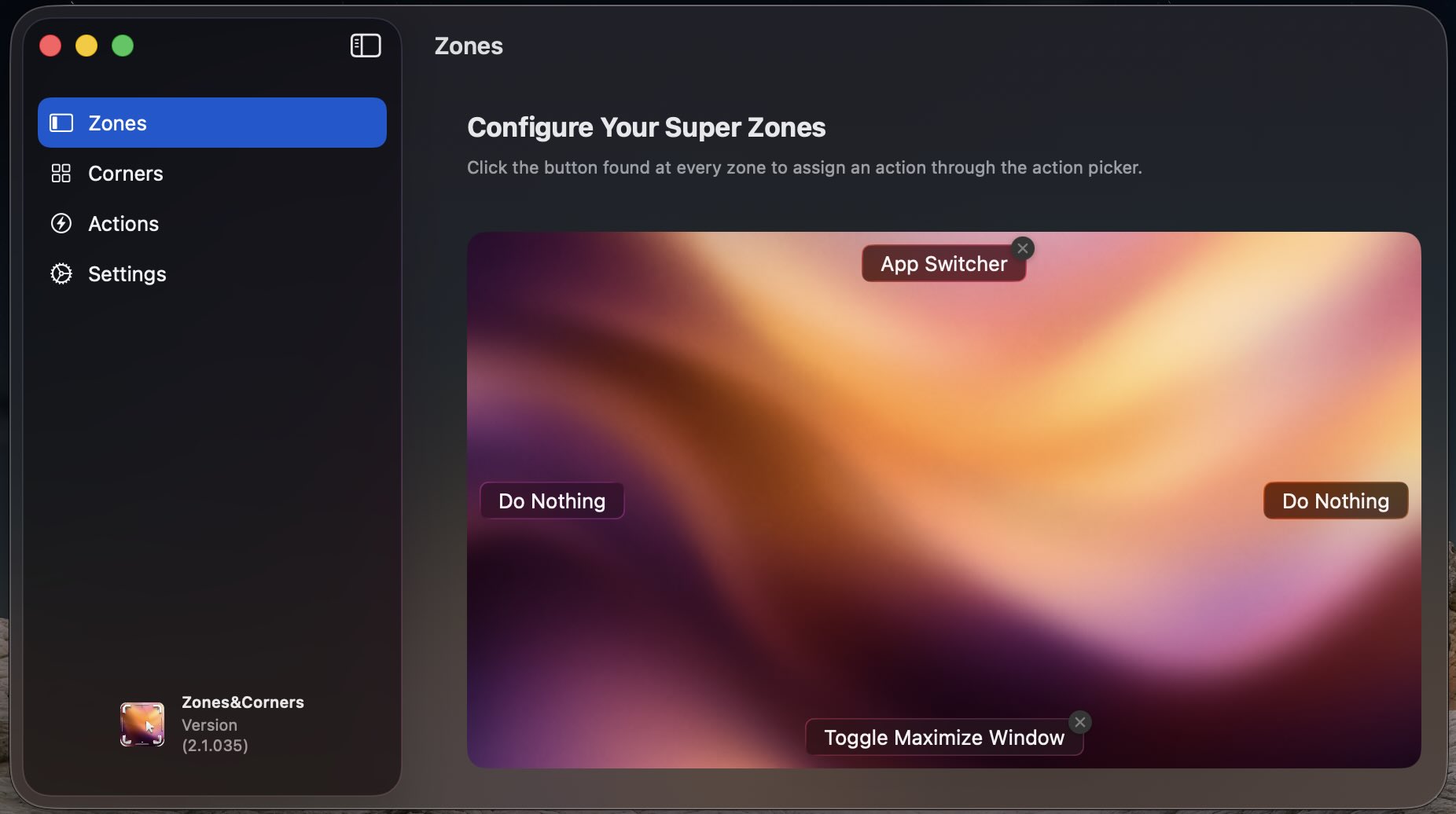
Fitts's Law applies not only to the corners of your screen, but to the borders as well. Zones&Corners introduces Edge Zones located along each border of your display:
- Top Edge Zone: Ideal for opening Spotlight Search, Control Center, or launching the visual App Switcher.
- Bottom Edge Zone: Perfect for toggling Notification Center, maximizing windows (with or without hiding the Dock), or launching notes and scratchpads such as Paste Box.
- Left Edge Zone: Move left to jump to your Previous Desktop Space, reveal your desktop, or fire an Apple Shortcut.
- Right Edge Zone: Move right to switch to the Next Desktop Space, extract on-screen text with OCR, pick a screen color, or open Safari Reader Mode.
4. Preventing Accidental Triggers & Avoiding Conflicts
Preventing unintended triggers shouldn't require awkward finger gymnastics every time you move your pointer. Zones&Corners puts practical safeguards directly inside Settings:
- Trigger Delay Timer (0–5.0s): Require the cursor to linger briefly inside a corner or edge zone before firing, so normal cursor passes toward browser tabs or the menu bar do not misfire.
- Separate Sensitivity Sliders: Tune Corner Trigger Sensitivity (3–10) and Zone Trigger Sensitivity (3–8) independently to match your display resolution and pointer speed.
- Ignored Applications: Add full-screen games, creative tools, or code editors to your Ignored Applications list so triggers automatically pause whenever those apps are active in the foreground.
- System Hot Corner Conflict Detection: Zones&Corners automatically inspects existing macOS System Hot Corners and protects occupied slots from accidental collisions.
Want instant access to extra tools beyond your 8 screen slots? Open the Actions tab, click the star icon on your favorite actions, and trigger them anytime directly from the Favorites submenu in the Zones&Corners menu bar icon.
5. Built-In Power Tools Beyond Simple Triggers
Unlike basic hot-corner wrappers, Zones&Corners ships dedicated on-screen utilities ready to bind to any corner, edge zone, or Favorite:
- Visual App Switcher & Clean RAM: Displays open apps grouped by macOS Spaces/Desktops in Most Recently Used order, lets you switch or close individual apps or Close All, shows live per-app memory usage and system memory pressure, and cleans residual background processes with Clean RAM.
- Text Extractor (Vision OCR) + History: Select any region of an image, PDF, or video on screen to copy recognized text immediately, with an optional floating Recent Extractions panel storing up to 20 items.
- Screen Color Picker + Swatch History: Sample colors from anywhere on screen in Hex, RGB, RGBA, HSL, or HSLA, alongside a floating Recent Colors history panel storing up to 20 swatches.
- Clipboard Text Count, Window Tiling & Templates: View word, character, sentence, and paragraph counts with estimated reading/speaking times for your clipboard text, use window actions like Toggle Dock and Maximize Window or Close Window with Confirmation, or configure Templates to launch apps, open URLs/files/folders, run Apple Shortcuts, simulate hotkeys, execute AppleScripts, or run Terminal commands.
6. Step-by-Step Setup Tutorial
Getting started with Zones&Corners on your Mac takes just a few minutes:
Download & Install the Notarized DMG
Download ZonesCorners.dmg, open the disk image, and drag Zones&Corners into your /Applications folder. Because the app is signed and notarized with an Apple Developer ID, no Terminal commands or Gatekeeper bypasses are needed. Launch the free demo right away—no payment info required.
Complete Onboarding & Grant Accessibility Permissions
Launch Zones&Corners and walk through the brief welcome tour. When prompted, open System Settings > Privacy & Security > Accessibility and toggle Zones&Corners ON so it can detect corner/edge positions, manage windows, and simulate hotkeys (approve standard Screen Recording or Automation prompts as well if you use capture, OCR, Color Picker, or scripting actions).
Assign Your 8 Slots, Trigger Delay & Feedback
Open the Corners or Zones tab from the menu bar icon, click any slot, and choose from 76 built-in actions or templates. Then open Settings to dial in your Trigger Delay Timer, sensitivity sliders, Ignored Applications, Visual Overlay color (8 choices + duration), and Sound feedback (14 macOS system sounds).
7. Feature Comparison: Apple Default vs. Zones&Corners
Here is how the default macOS Hot Corners experience compares to Zones&Corners:
| Capability | macOS Default (Apple) | Zones&Corners Utility |
|---|---|---|
| Trigger Locations | 4 Corners only | 8 Zones (4 Corners + 4 Screen Edges) |
| Built-In Actions | Handful of system presets | 76 actions across 7 categories + Favorites |
| Apps, Shortcuts & Scripts | Quick Note only | Apps, URLs, Shortcuts, Hotkeys, AppleScript & Terminal |
| Built-In Power Tools | None | Spaces App Switcher + Clean RAM, OCR, Color Picker |
| Accidental Trigger Controls | ⚠️ Manual modifier hold only | Trigger Delay Timer (0–5s), sensitivity sliders & Ignored Apps |
| System Conflict Detection | N/A | Detects & protects occupied System Hot Corners |
| Visual & Sound Feedback | No | 8-color on-screen overlay & 14 system sound effects |
| Availability | Integrated in macOS | Free demo (macOS 13+) |
8. Frequently Asked Questions
Yes. Zones&Corners includes configurable Template actions for running Apple Shortcuts, AppleScripts, Terminal commands, simulated key combinations, launching apps, and opening folders, files, or websites.
In Zones&Corners Settings, you can configure a Trigger Delay Timer (from 0 to 5.0 seconds) so brief cursor brush-pasts do not activate, tune separate sensitivity sliders for corners and edge zones, and add specific apps to Ignored Applications so triggers pause whenever those apps are active.
No. Zones&Corners automatically checks for existing macOS System Hot Corners, prevents accidental conflicts in the configuration grid, and helps you review them during onboarding.
No. Zones&Corners runs entirely in user space using standard macOS Accessibility APIs (and standard Screen Recording or Automation prompts only when you trigger capture, OCR, color-picker, or scripting actions). It requires no SIP modification or kernel extensions.
Supercharge Your Mac Workflow Today
Your screen perimeter is the fastest target on your display. By upgrading from Apple's four static hot corners to Zones&Corners, you turn every corner and screen edge into an instant command center backed by practical power tools and clean safeguards.